If you've ever tried to build a custom Gutenberg block from scratch, you've encountered attributes — the JSON-defined properties that store a block's data. They can be confusing. BF Blocks abstracts them entirely, but understanding how they work under the hood makes you a better block builder.
What Are Block Attributes?
Attributes are declared in block.json and define what data a block stores, what type that data is, and where it comes from. Every field you add in BF Blocks generates a corresponding attribute automatically.
Core Attribute Types
- string — for text, textarea, and URL fields
- integer / number — for numeric inputs
- boolean — for toggle fields
- array — for repeater and multi-select fields
- object — for complex structured data
- null — allows any type
How BF Blocks Maps Fields to Attributes
When you save a block in the BF Blocks builder, it generates a block.json file with all attributes pre-wired. A Text field becomes a string attribute. A Repeater becomes an array of objects. An Image field becomes an integer (the attachment ID).
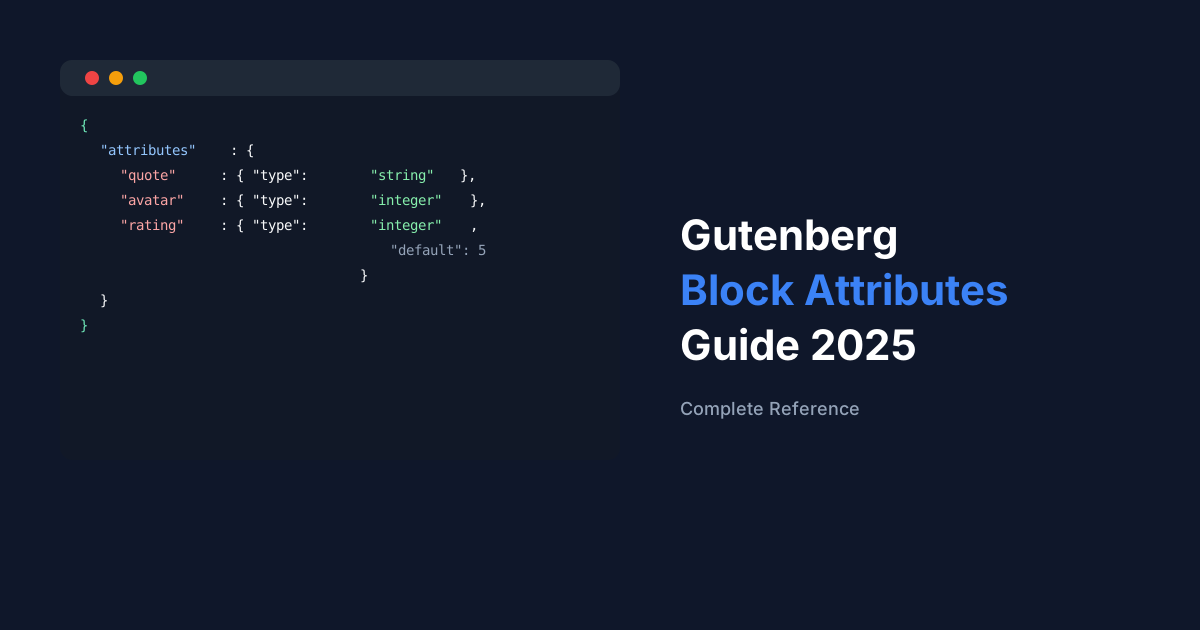
{
  "attributes": {
    "quote": { "type": "string", "default": "" },
    "avatar": { "type": "integer", "default": 0 },
    "rating": { "type": "integer", "default": 5 }
  }
}
Note
You never edit block.json manually with BF Blocks — it's generated and maintained automatically when you save changes in the builder.
Attribute Sources
Attributes can pull their value from different sources: 'attribute' (an HTML attribute on a DOM element), 'html' (inner HTML), 'text' (inner text), 'query' (repeated DOM elements), or 'meta' (post meta). BF Blocks uses 'attribute' source for most fields, backed by the block's serialised save output.
Default Values
Setting sensible defaults in BF Blocks' field settings means editors never see empty broken blocks — a default renders until they override it. Always set defaults for visual fields like colour pickers, font size selectors, and toggle switches.